Document Version Selector
Overview
OpenContracts tracks every change to your documents using an immutable version history. When you re-upload a file at the same path inside a corpus, the platform creates a new version rather than overwriting the original. A small version badge on each document card tells you at a glance whether the document has history, and the Version History Panel lets you browse, compare, and restore any past version.
Version Creation
Versions are created automatically when a document is uploaded to a path that already contains a file:
- First upload — creates Version 1 (the initial version).
- Subsequent uploads at the same path — each one creates a new version (v2, v3, …). The previous version is preserved and can be accessed at any time.
Moves and renames do not bump the version number — only content changes do.
Visual Status Indicators
Every document card displays a small badge in its top-right corner. The badge color communicates the document's version state at a glance:
| Badge Color | Meaning | Example |
|---|---|---|
| Gray | Single version, no history | v1 |
| Blue | Latest version, history available | v3 • 5 (version 3 of 5) |
| Orange | Older version (a newer one exists) | v2 • 3 (version 2 of 3) |
Single-Version Badge (Gray)
Documents that have never been updated show a simple gray v1 badge. The badge is not clickable because there is no history to browse.

Latest-Version Badge (Blue)
When a document has multiple versions and you are viewing the latest one, the badge turns blue and shows the version count (e.g. v3 • 5). Click the badge to open the Version History Panel.

Older-Version Badge (Orange)
If you are viewing a version that is not the latest, the badge turns orange as a warning. This helps you notice when you are looking at outdated content. Hovering over it shows additional context.

Version History Panel
Clicking a blue or orange version badge opens the Version History Panel, a modal dialog with a vertical timeline of every version.
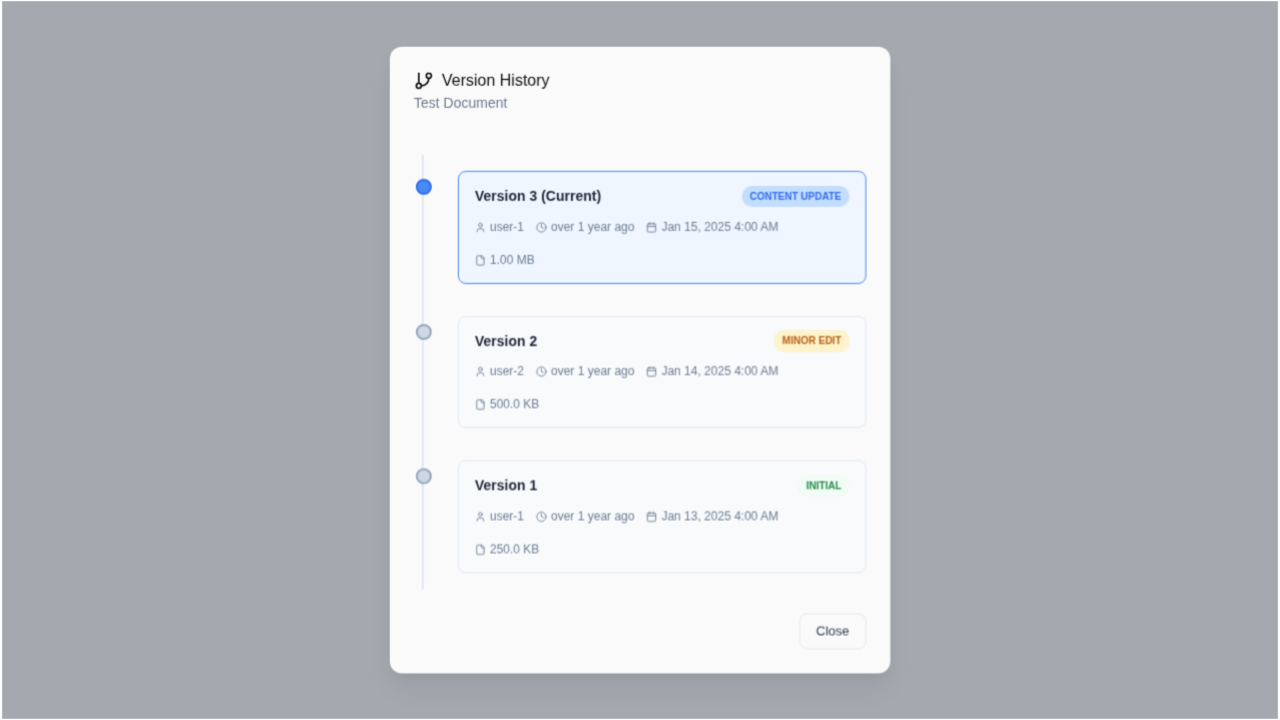
Each version card shows:
- Version number and whether it is the current version
- Change type badge (Initial, Content Update, Minor Edit, Major Revision)
- Author who created that version
- Timestamps (relative and absolute)
- File size
Selecting a Version
Click any version card to select it. For non-current versions, two action buttons appear:
- Restore This Version — creates a new version with the selected version's content (the old version is preserved, not overwritten).
- Download — downloads the file for that specific version.
Selecting the current version shows an informational message instead.
Restore Feedback
After restoring:
- A green success message confirms the new version number (auto-dismisses after 5 seconds).
- If the restore fails, a red error message explains why (auto-dismisses after 10 seconds).
Both messages can be dismissed manually by clicking the close icon.
Trash Folder and Document Recovery
When a document is deleted, it is soft-deleted — it moves to the corpus Trash folder rather than being permanently removed.
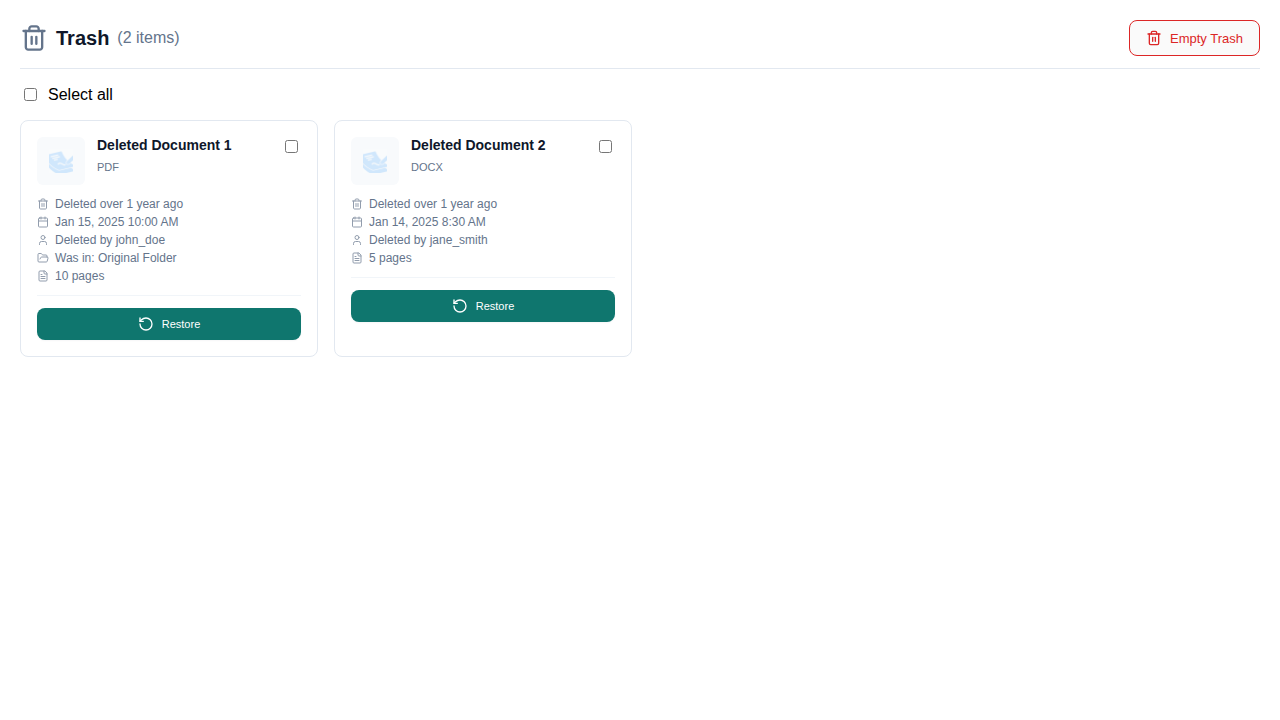
The Trash folder view shows:
- Each deleted document with its original title, file type, page count, and the user who last modified it.
- The original folder the document belonged to (if any).
- A Restore button on every document card.
- Select all / Clear Selection controls for bulk operations.
- A Restore Selected button for restoring multiple documents at once.
- An Empty Trash button for permanently removing all items.
Restoring a Deleted Document
- Open the Trash folder from the corpus folder sidebar.
- Click Restore on the document you want to recover, or select multiple documents and click Restore Selected.
- The document reappears at its original path and folder.
Partial failures during bulk restore are handled gracefully — successfully restored documents are removed from the trash while failed ones remain with an error message.
Technical Details
Architecture
Document versioning uses a dual-tree architecture:
- Content Tree (Document model) — tracks "what is this file's content?" Each upload creates a new Document node linked to its predecessor.
- Path Tree (DocumentPath model) — tracks "where has this file lived?" Every lifecycle event (import, move, delete, restore) creates a new path node.
For the full architecture specification, see Dual-Tree Document Versioning Architecture.
Components
| Component | Location | Purpose |
|---|---|---|
VersionBadge | frontend/src/components/documents/VersionBadge.tsx | Color-coded badge on document cards |
VersionHistoryPanel | frontend/src/components/documents/VersionHistoryPanel.tsx | Timeline modal with restore/download actions |
TrashFolderView | frontend/src/components/corpuses/folders/TrashFolderView.tsx | Trash folder with bulk restore |
ModernDocumentItem | frontend/src/components/documents/ModernDocumentItem.tsx | Document card that integrates the badge and panel |
GraphQL Operations
| Operation | Type | Description |
|---|---|---|
GetDocumentVersionHistory | Query | Fetches version list with metadata for a document |
RestoreDocumentToVersion | Mutation | Creates a new version from a previous one |
GetDeletedDocumentsInCorpus | Query | Lists soft-deleted documents in a corpus |
RestoreDeletedDocument | Mutation | Restores a soft-deleted document to its original path |
Corpus Isolation
Each corpus maintains completely independent version trees. Uploading the same file to two different corpuses creates two separate, unrelated documents. This ensures there are no cross-corpus version conflicts and supports per-corpus embedding models for vector search.