Pipeline Configuration Guide
This guide covers how to configure the document processing pipeline in OpenContracts, including first-time setup, upgrades, and runtime configuration.
Overview
OpenContracts uses a database-backed configuration system for pipeline settings. This allows superusers to change parsers, embedders, and thumbnailers at runtime without code deployment.
The configuration is stored in a singleton PipelineSettings model that tracks: - Preferred parsers per MIME type - Preferred embedders per MIME type - Preferred thumbnailers per MIME type - Parser kwargs (component-specific configuration) - Component settings (advanced overrides) - Default embedder (fallback when no MIME-specific embedder exists) - Encrypted secrets (API keys, credentials)
Discovering Available Components
Before configuring, discover what pipeline components are available and what settings they need:
# List all components and their settings
docker compose -f local.yml run django python manage.py migrate_pipeline_settings --list-components

# Filter to a specific component
docker compose -f local.yml run django python manage.py migrate_pipeline_settings --list-components --component LlamaParse
Example output:
======================================================================
AVAILABLE PIPELINE COMPONENTS
======================================================================

Parsers
----------------------------------------

  DoclingParser
    Class: opencontractserver.pipeline.parsers.docling_parser_rest.DoclingParser
    Title: Docling Parser
    Description: Parse documents using Docling ML service
    Supported types: application/pdf
    Settings (2):
      - force_ocr: bool
          default: False
          Force OCR on all pages
      - roll_up_groups: bool
          default: True
          Combine grouped elements

  LlamaParseParser
    Class: opencontractserver.pipeline.parsers.llamaparse_parser.LlamaParseParser
    Settings (1):
      - api_key: str [REQUIRED, SECRET]
          env: LLAMAPARSE_API_KEY
          LlamaParse API key

...
======================================================================
USAGE
======================================================================
  1. Set environment variables for required settings
  2. Run: python manage.py migrate_pipeline_settings
  3. Verify: python manage.py migrate_pipeline_settings --verify
======================================================================
First-Time Setup (Fresh Install)
On a fresh installation, pipeline settings are automatically initialized from Django settings during migration.
# 1. Discover what components exist and what they need
docker compose -f local.yml run django python manage.py migrate_pipeline_settings --list-components

# 2. Set any required environment variables (see output from step 1)
# export LLAMAPARSE_API_KEY=your-key  # if using LlamaParse

# 3. Run migrations - creates PipelineSettings singleton from Django settings
docker compose -f local.yml run django python manage.py migrate

# 4. Migrate component settings from environment variables to database
docker compose -f local.yml run django python manage.py migrate_pipeline_settings

# 5. Verify all components have required settings
docker compose -f local.yml run django python manage.py migrate_pipeline_settings --verify
That's it for basic setup. The system will use sensible defaults: - Docling parser for PDFs - TxtParser for text files - MicroserviceEmbedder for embeddings
Environment Variables for First Boot
Set these in your .env file or docker-compose environment before first migration:
# Parser selection (optional - defaults to docling)
PDF_PARSER=docling  # Options: docling, llamaparse

# LlamaParse (if using llamaparse parser)
LLAMAPARSE_API_KEY=your-api-key-here

# Multimodal embedder (if using)
MULTIMODAL_EMBEDDER_HOST=multimodal-embedder
MULTIMODAL_EMBEDDER_PORT=8000
MULTIMODAL_EMBEDDER_VECTOR_SIZE=768
Upgrading Existing Installation
When upgrading OpenContracts, the migration system preserves your existing configuration (if you've already setup pipeline settings in the DB). However, if Django settings have new defaults you want to adopt, use --sync-preferences:
# 1. Run migrations
docker compose -f local.yml run django python manage.py migrate

# 2. (Optional) Preview what would change if syncing from Django settings
docker compose -f local.yml run django python manage.py migrate_pipeline_settings --sync-preferences --dry-run

# 3. (Optional) Apply new defaults from Django settings
docker compose -f local.yml run django python manage.py migrate_pipeline_settings --sync-preferences

# 4. (Optional) Migrate any new component settings from environment
docker compose -f local.yml run django python manage.py migrate_pipeline_settings
Understanding the Sync Behavior
| Scenario | What Happens |
|---|---|
| Fresh install | Migration creates singleton from Django settings |
| Upgrade (no action) | Existing DB settings preserved |
--sync-preferences | Overwrites DB preferences with current Django settings |
migrate_pipeline_settings | Migrates component-specific settings from env vars |
Runtime Configuration (Admin UI)
Superusers can configure the pipeline at runtime through the Admin UI:
- Navigate to Admin → Pipeline Configuration
- Configure preferred components per MIME type
- Add API keys via the Component Secrets section
- Configure the per-MIME-type enrichment chain (ordered list of enrichers — see Enrichers) via the Enrichment Chains editor
- Configure agent tool credentials (e.g. the web search tool) via the Agent Tools panel — see
frontend/src/components/admin/system_settings/ToolSecretsPanel.tsx
UI Overview
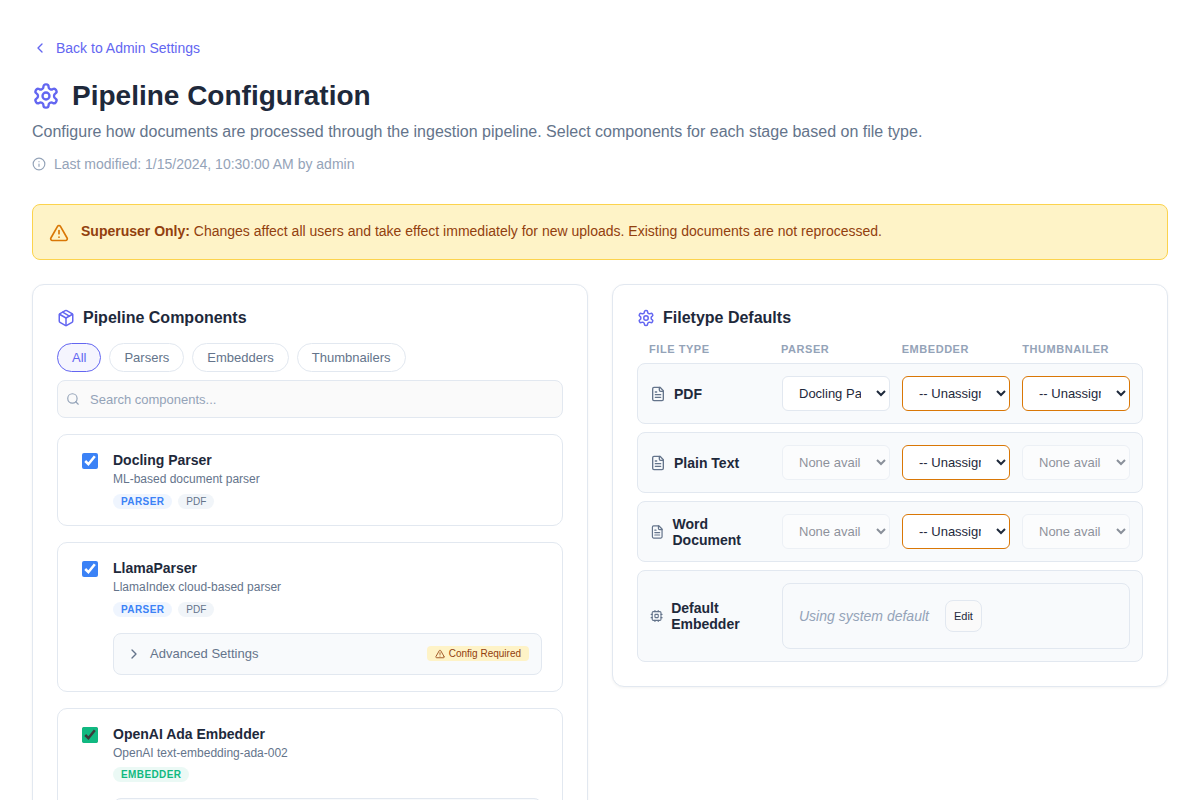
On desktop, the Pipeline Configuration page uses a two-column layout with the Component Library on the left and Filetype Defaults on the right:
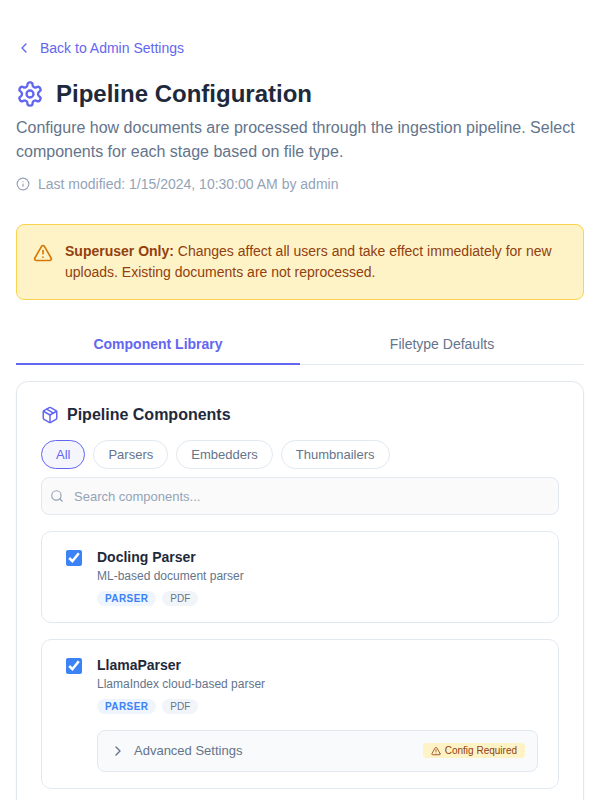
On mobile and tablet viewports, the two sections collapse into a tabbed interface:
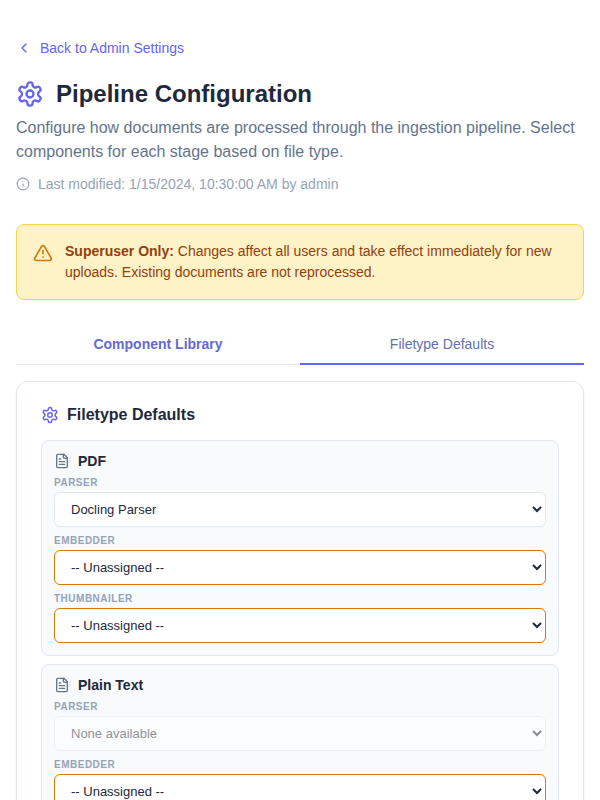
Switching to the Filetype Defaults tab shows the per-MIME-type parser/embedder/thumbnailer assignment:
Component Secrets
Sensitive configuration (API keys, credentials) is stored encrypted in the database. Secrets are encrypted using Django's SECRET_KEY.
Warning: If you rotate
SECRET_KEY, all encrypted secrets become unrecoverable. Before rotating: 1. Export secrets via Django shell:PipelineSettings.get_instance().get_secrets()2. After rotation, re-import:instance.set_secrets(exported_secrets); instance.save()
File Converters (Gotenberg)
File converters are an optional pre-parse step that turns an upload with no native parser (.doc, .rtf, .odt, .pptx, .xlsx, .png, and ~120 other extensions — see Supported File Formats) into a PDF before the normal parser/thumbnailer/embedder stages run. This is a single install-wide setting (PipelineSettings.default_file_converter), not file-type-scoped like the Parser/Thumbnailer columns above — there is one converter selection for the whole install.
Disabled by default. A fresh install accepts only the three core formats (PDF, TXT, DOCX) until you configure a converter. OpenContracts ships one implementation out of the box, GotenbergFileConverter, which delegates to a Gotenberg service's LibreOffice route. See File Converters in the Pipeline Architecture doc for the full extension-eligibility and security model (stored-MIME-type hardening, conversion-service egress/SSRF posture).
The gotenberg service already runs in your stack
local.yml and production.yml both define a gotenberg service (gotenberg/gotenberg:8) with no compose profile gate, so it starts automatically with the rest of the stack (docker compose -f local.yml up, etc.) alongside django and celeryworker — you don't need to add or start anything at the compose level. It has no published host port (it's reachable only on the docker bridge at http://gotenberg:3000, avoiding a collision with the frontend dev server's own port 3000) and django/celeryworker declare it as an optional dependency (required: false), so the stack still starts normally if the container is ever removed. Until a converter is selected in PipelineSettings, the container simply sits idle — no requests are ever sent to it.
Enabling conversion is therefore purely a PipelineSettings change, made either through the admin UI at runtime or via an environment variable at first boot.
Enabling via the Admin UI (runtime, no restart)
- Log in as a superuser and navigate to Admin → Pipeline Configuration. The File Converter row lives in the Filetype Defaults panel, below Default Embedder. A fresh install shows it disabled:

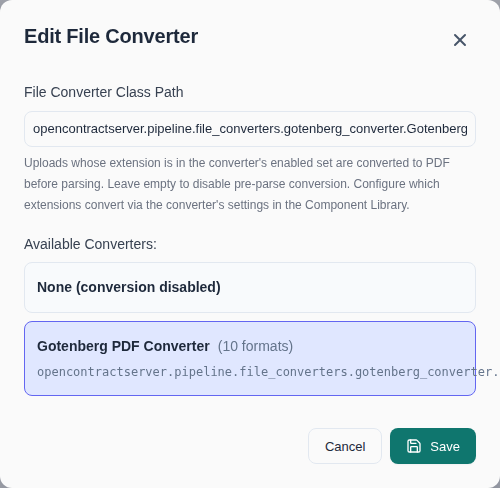
- Click Edit on the File Converter row to open the picker. Choose the Gotenberg PDF Converter card (or type a custom converter class path directly into the input, if you've registered your own
BaseFileConvertersubclass):
- Click Save. The row now shows the configured converter's class path, and every subsequent upload whose extension is in Gotenberg's supported set is converted to PDF before parsing:
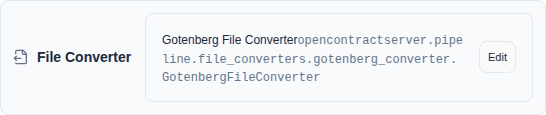
Changes take effect immediately for new uploads; documents already ingested are not reprocessed.
Disabling via the Admin UI
Repeat the same flow and pick None (conversion disabled) in the picker, then Save. This writes an empty string to default_file_converter, which the backend treats as "conversion off" — uploads outside the three core formats are rejected again, exactly like a fresh install.
Enabling/disabling via environment variable
For first-boot / infrastructure-as-code setups, set DEFAULT_FILE_CONVERTER in your .django env file before running migrations — it seeds PipelineSettings.default_file_converter the same way PDF_PARSER seeds the preferred parser (see First-Time Setup above):
# .envs/.local/.django or .envs/.production/.django

# Enable Gotenberg-powered conversion for non-core formats:
DEFAULT_FILE_CONVERTER=opencontractserver.pipeline.file_converters.gotenberg_converter.GotenbergFileConverter

# Leave unset (or empty) to keep conversion disabled — the default.
# DEFAULT_FILE_CONVERTER=
This only takes effect on first migration of a fresh PipelineSettings singleton, or after migrate_pipeline_settings --sync-preferences, per the Configuration Priority rules above — an existing install should use the Admin UI instead, since the database is the runtime source of truth.
Two related settings tune the Gotenberg connection itself (also configurable as GotenbergFileConverter component settings in the Admin UI's Component Library):
| Env var | Default | Purpose |
|---|---|---|
GOTENBERG_SERVICE_URL | http://gotenberg:3000 | Base URL of the Gotenberg service |
GOTENBERG_CONVERTER_TIMEOUT | 300 | Conversion request timeout, in seconds |
To narrow the converter to a subset of extensions (e.g. only spreadsheets), set its convert_extensions component setting to a comma-separated list — see the Component Library panel or GotenbergFileConverter.Settings in gotenberg_converter.py.
Management Command Reference
migrate_pipeline_settings
# List all available components and their settings schemas
python manage.py migrate_pipeline_settings --list-components

# Filter to specific component
python manage.py migrate_pipeline_settings --list-components --component DoclingParser

# Preview what would be migrated
python manage.py migrate_pipeline_settings --dry-run

# Migrate component settings from environment variables
python manage.py migrate_pipeline_settings

# Force overwrite existing DB values with environment values
python manage.py migrate_pipeline_settings --force

# Verify all components have required settings
python manage.py migrate_pipeline_settings --verify

# Sync main preferences (PREFERRED_PARSERS, etc.) from Django settings
python manage.py migrate_pipeline_settings --sync-preferences

# Migrate settings for a specific component only
python manage.py migrate_pipeline_settings --component LlamaParseParser

# Verbose output showing all settings
python manage.py migrate_pipeline_settings --verbose

# Fail with exit code 1 if required settings are missing
python manage.py migrate_pipeline_settings --strict
Configuration Priority
The system uses database-only configuration at runtime:
- Database settings (
PipelineSettingsmodel) - the single source of truth - Component defaults - built-in defaults when no DB settings exist
Note: Django settings (
PREFERRED_PARSERS, etc.) are only read during initial migration to populate the database. At runtime, all configuration comes from the database. Use--sync-preferencesto re-sync from Django settings after upgrades.
Production Deployment
For production deployments:
# 1. Always run migrations first
docker compose -f production.yml --profile migrate up migrate

# 2. (First deploy only) Migrate settings from environment
docker compose -f production.yml run django python manage.py migrate_pipeline_settings

# 3. Start services
docker compose -f production.yml up -d
Recommended Production Settings
# .env.production

# Use Docling parser (default, no API key needed)
PDF_PARSER=docling

# Or use LlamaParse (requires API key)
# PDF_PARSER=llamaparse
# LLAMAPARSE_API_KEY=your-production-key

# Embedder settings
DEFAULT_EMBEDDER=opencontractserver.pipeline.embedders.sent_transformer_microservice.MicroserviceEmbedder
Troubleshooting
Components Not Available
If a component doesn't appear in the UI:
# Check registered components
python manage.py migrate_pipeline_settings --verify --verbose
Missing Required Settings
# Identify missing settings
python manage.py migrate_pipeline_settings --verify

# The output will show which settings need to be configured
Reset to Defaults
To reset pipeline component assignments and settings to Django defaults:
- Via Admin UI: Click "Reset to Defaults" button
- Via management command:
python manage.py migrate_pipeline_settings --sync-preferences --force
Reset restores preferred_parsers/preferred_embedders/preferred_thumbnailers/ preferred_enrichers/parser_kwargs/component_settings/the default_* fields/enabled_components from their Django settings counterparts (see ResetPipelineSettingsMutation in config/graphql/pipeline_settings_mutations.py). Stored secrets are never touched by Reset — component secrets and agent tool secrets (e.g. the web search tool's API key, see UpdateToolSecretsMutation/DeleteToolSecretsMutation) must be cleared separately via their own delete mutations if desired.