Step 4 - Create Text Annotations
To view or edit annotations, you need to open a corpus and then open a document in the Corpus.
- Go to your Corpuses page and click on the corpus you just created:
- This will open up the document view again. Click on one of the documents to bring up the annotator:
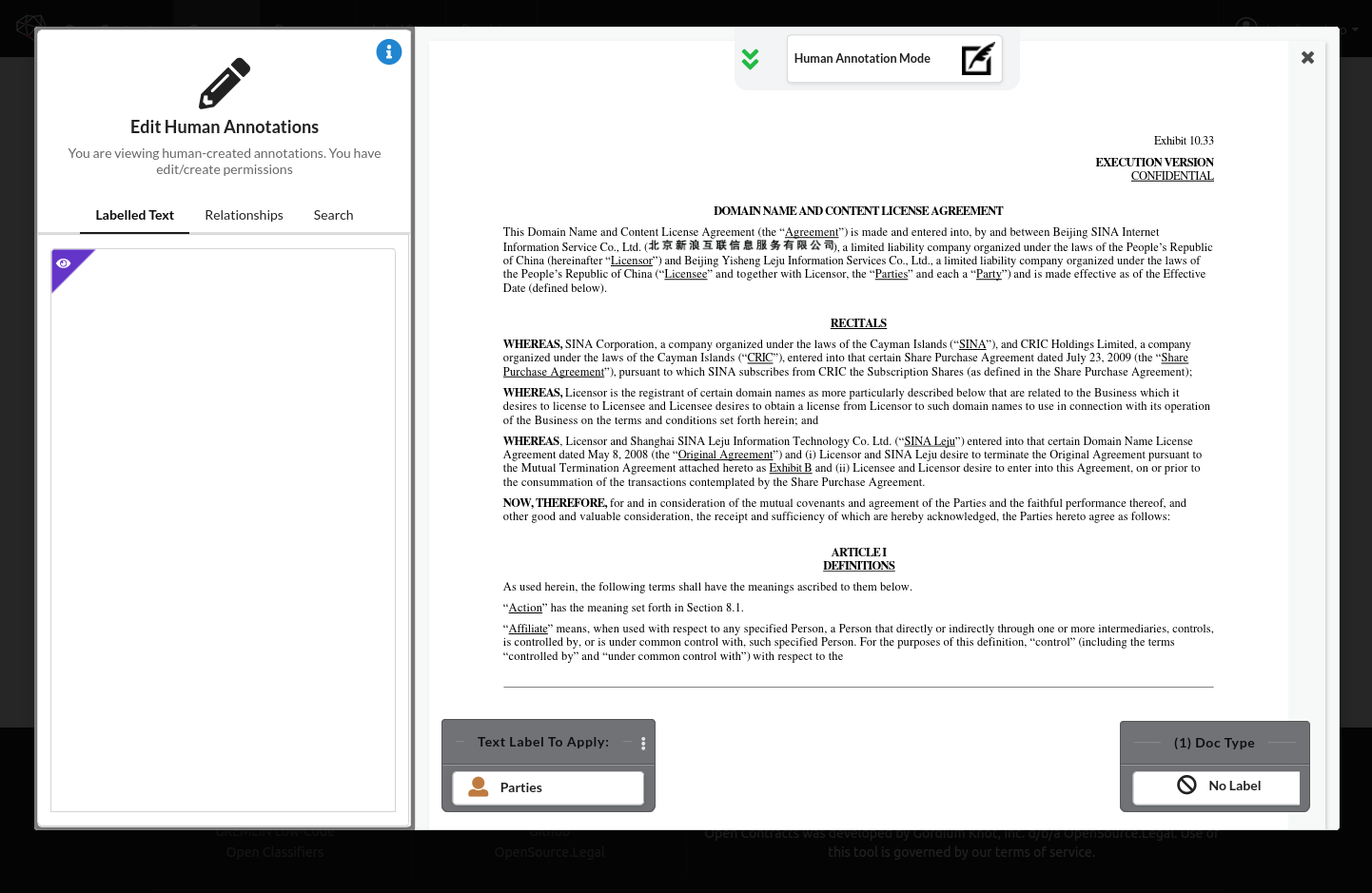
- To select or create a label to apply, click the label selector button (tag icon) in the bottom-right corner. This will bring up an enhanced interface that lets you:
- Search existing labels by typing
- Create new labels on-the-fly
- Automatically create a labelset if none exists
Tip: If your corpus doesn't have a labelset yet, the system will guide you through creating one without leaving the document view.
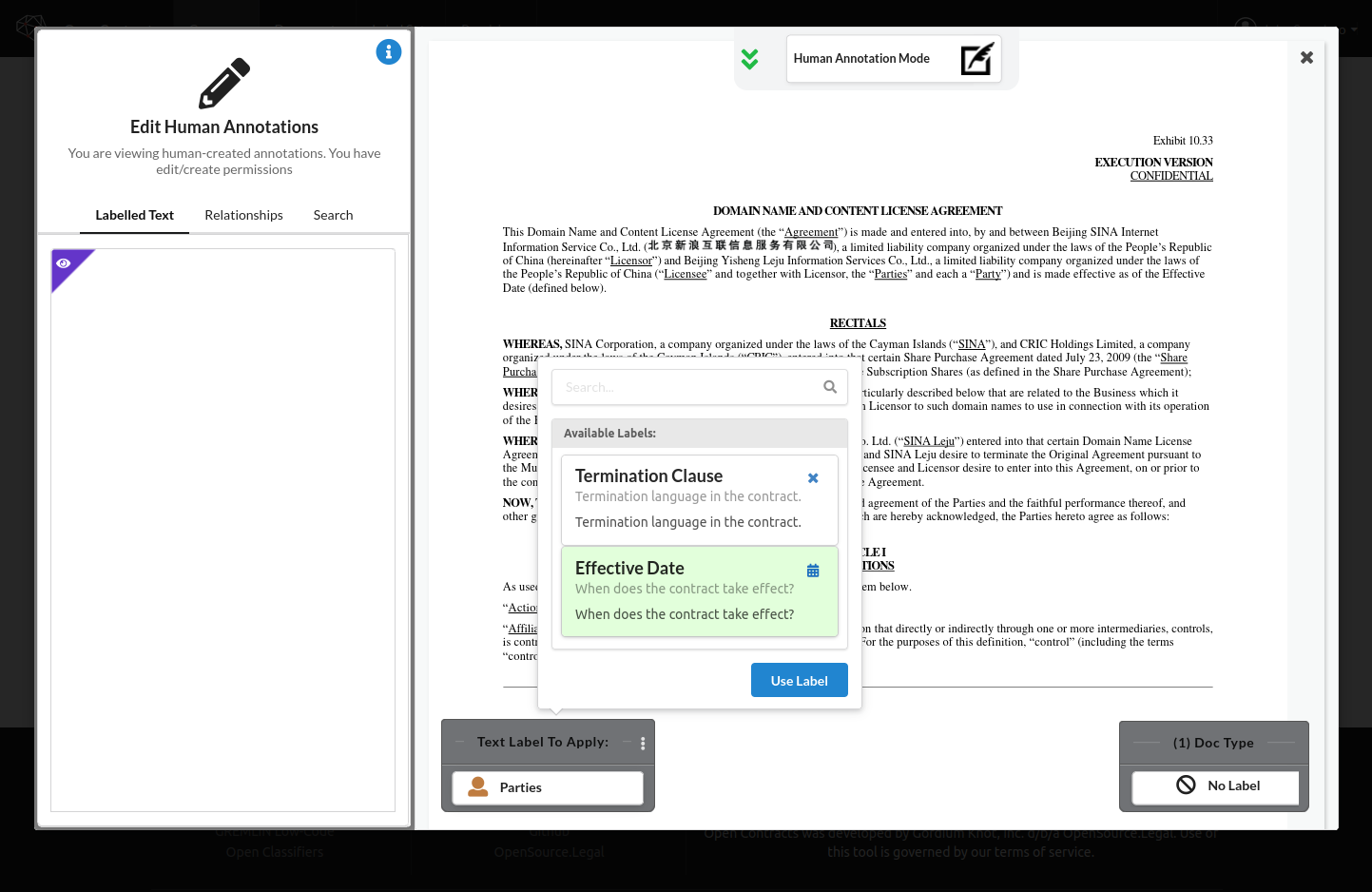
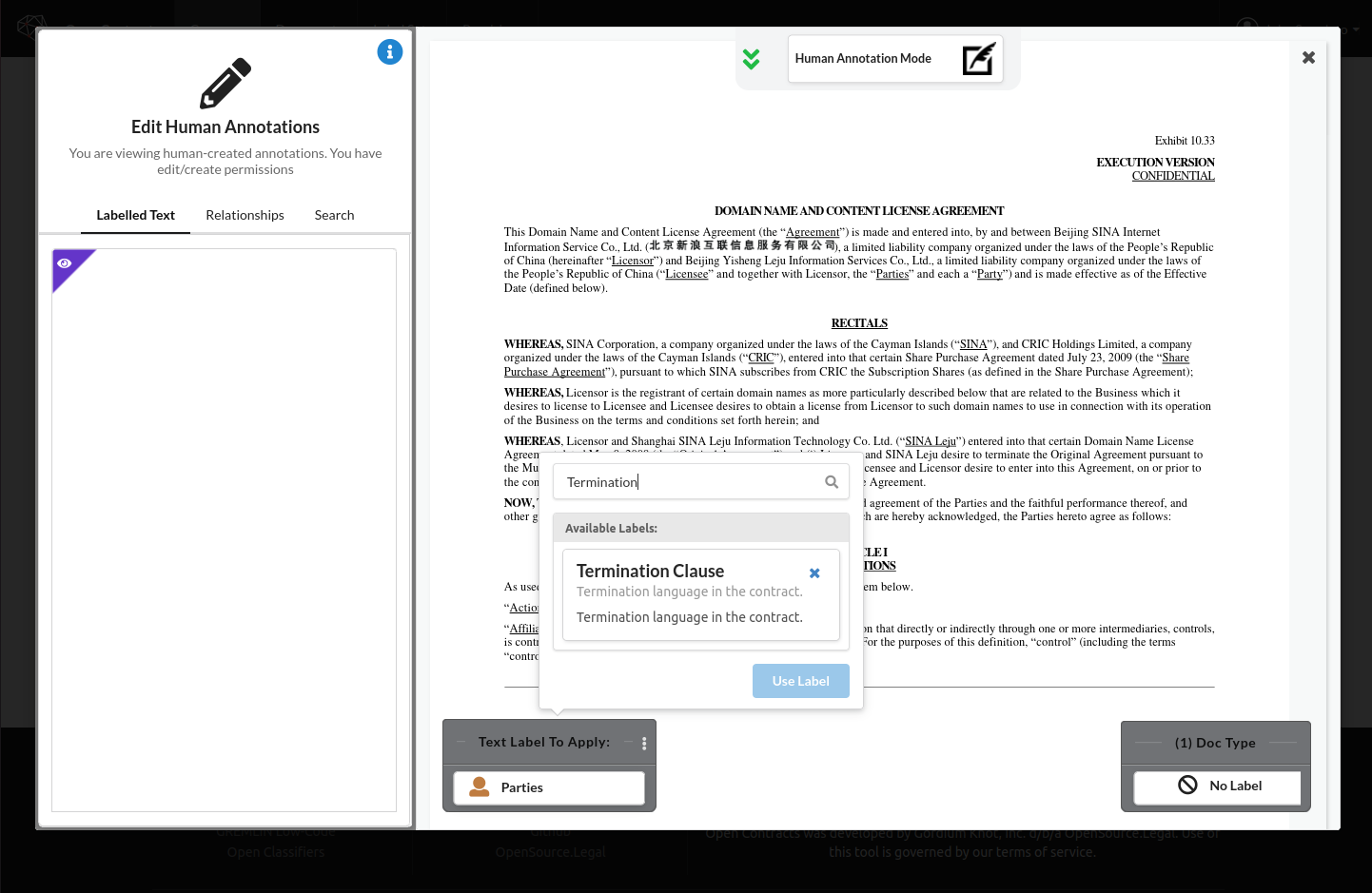 4. Select the "Effective Date" label, for example, to label the Effective Date:
  5. Now, in the document, click and drag a box around the language that corresponds to your select label:
 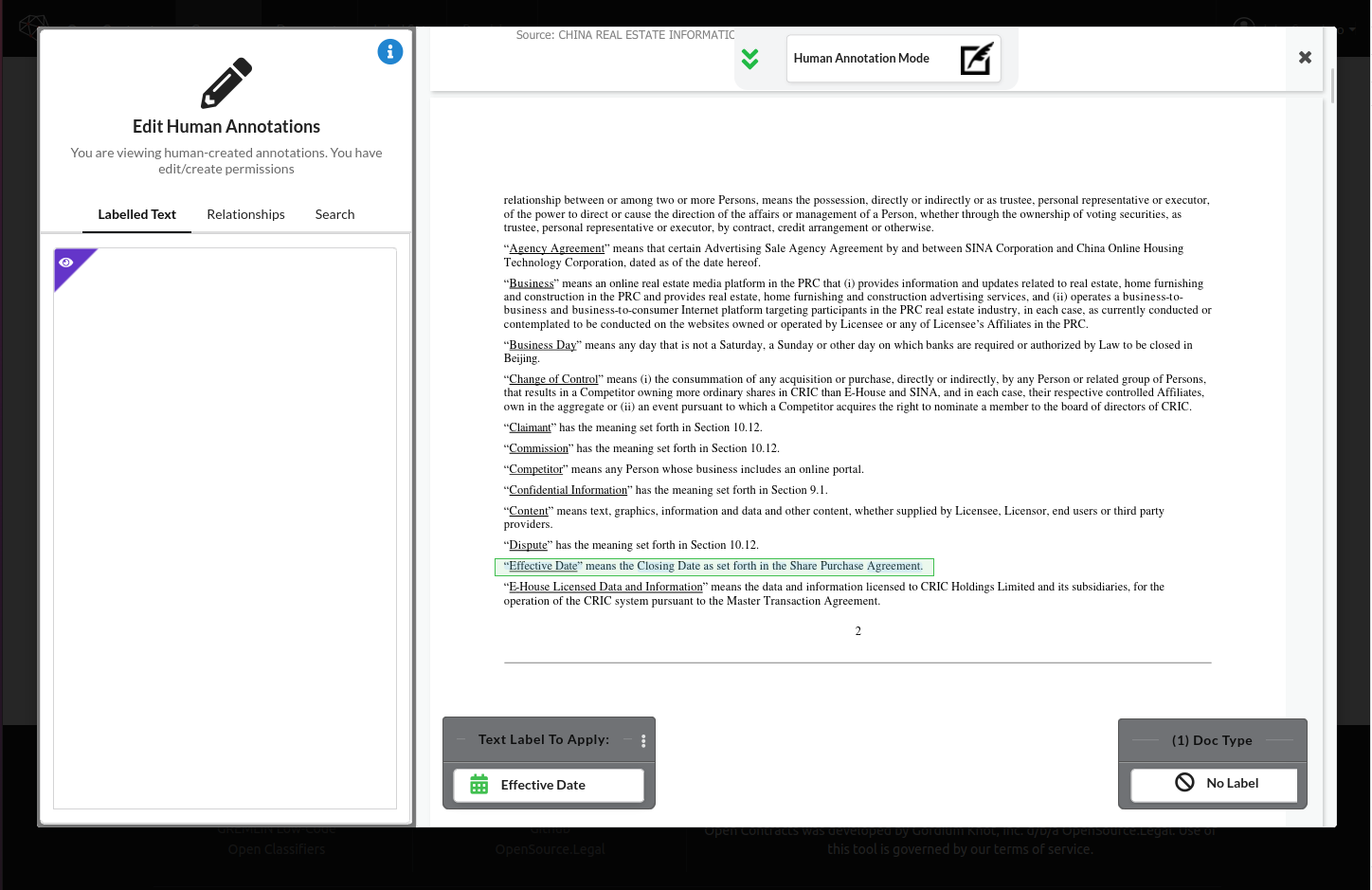 6. When you've selected the correct text, release the mouse. You'll see a confirmtion when your annotation is created (you'll also see the annotation in the sidebar to the left):
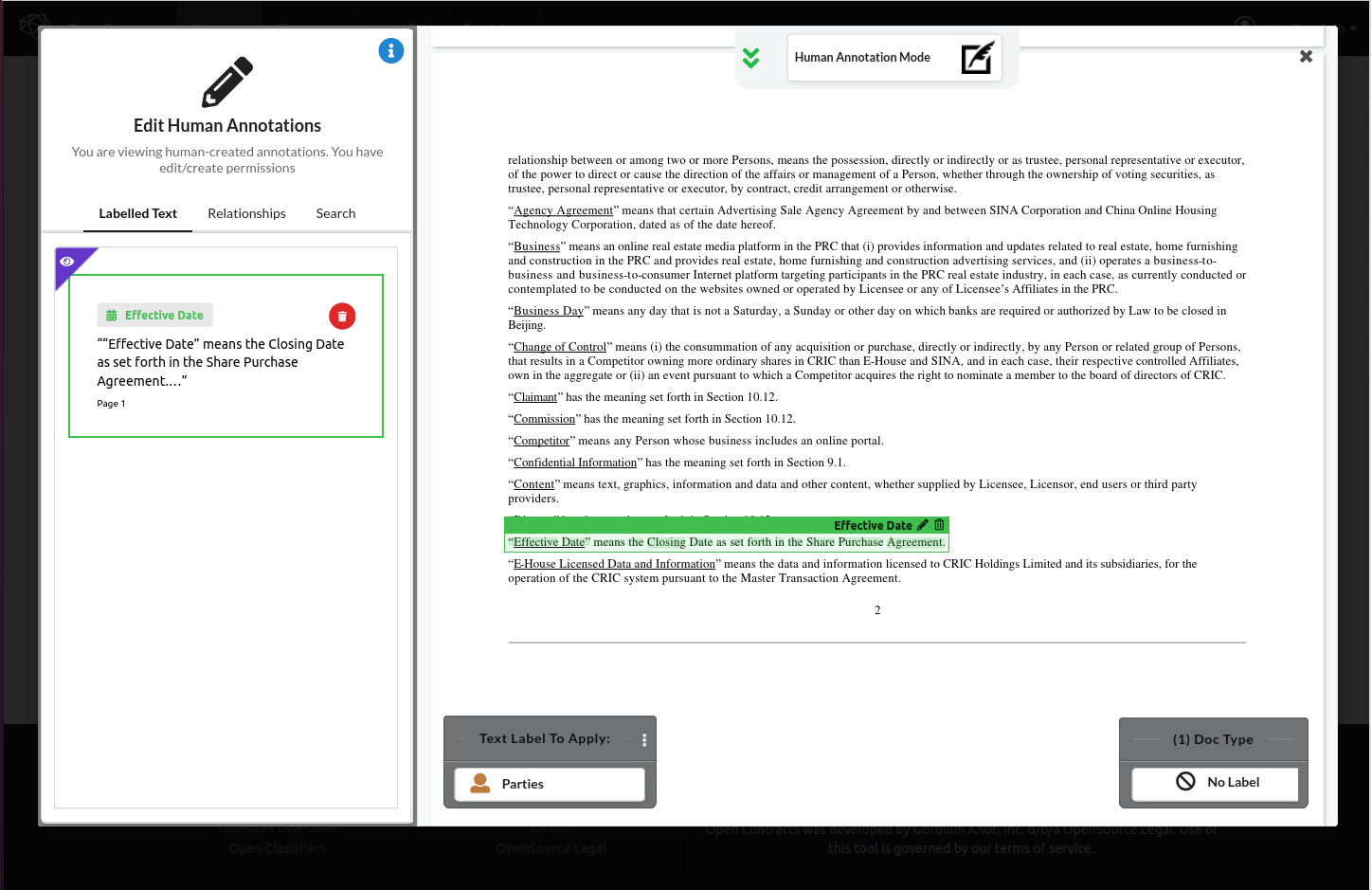
 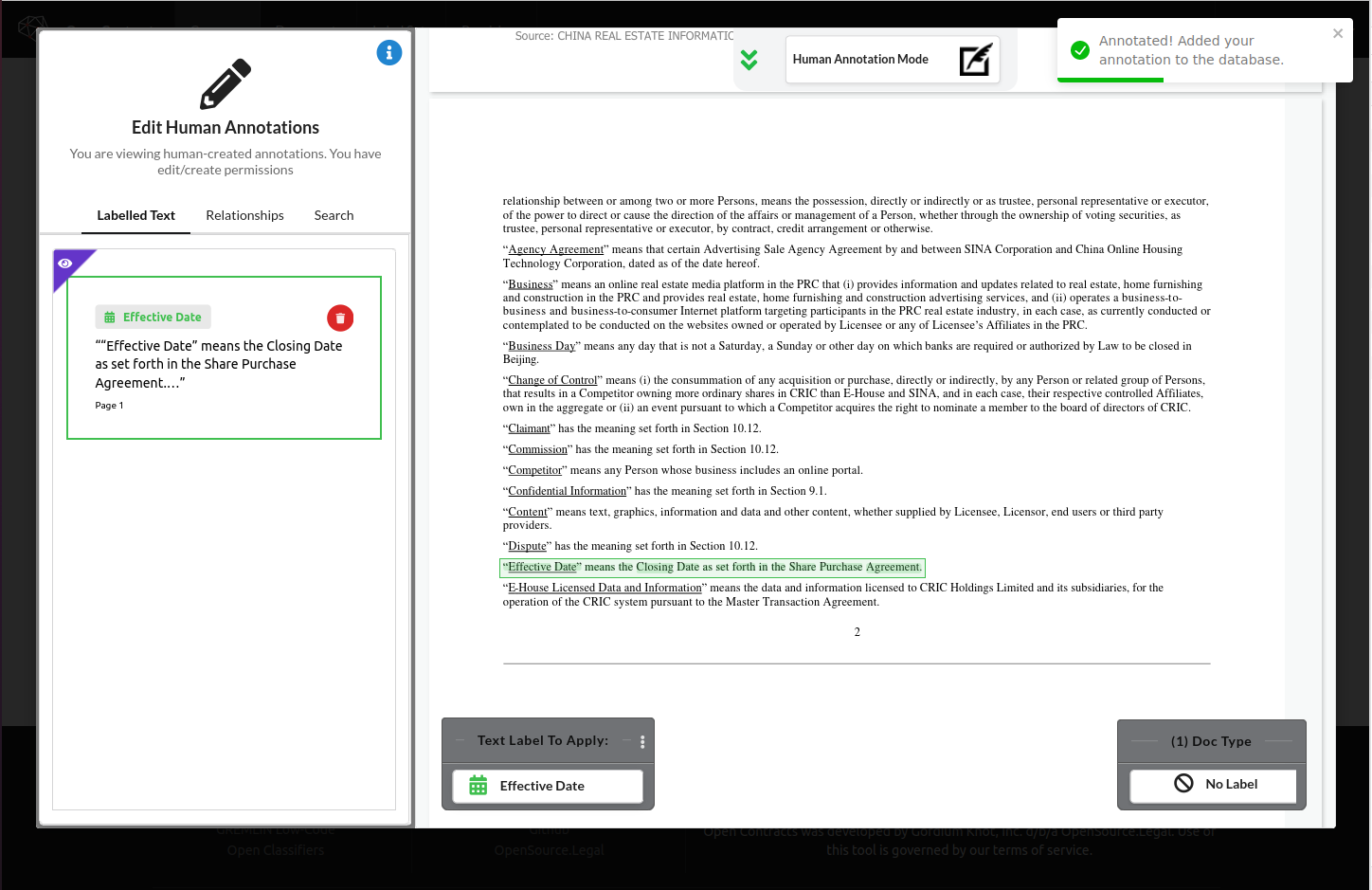 7. If you want to delete the annotation, you can click on the trash icon in the corresponding annotation card in the sidebar, or, when you hover over the annotation on the page, you'll see a trash icon in the label bar of the annotation. You can click this to delete the annotation too.
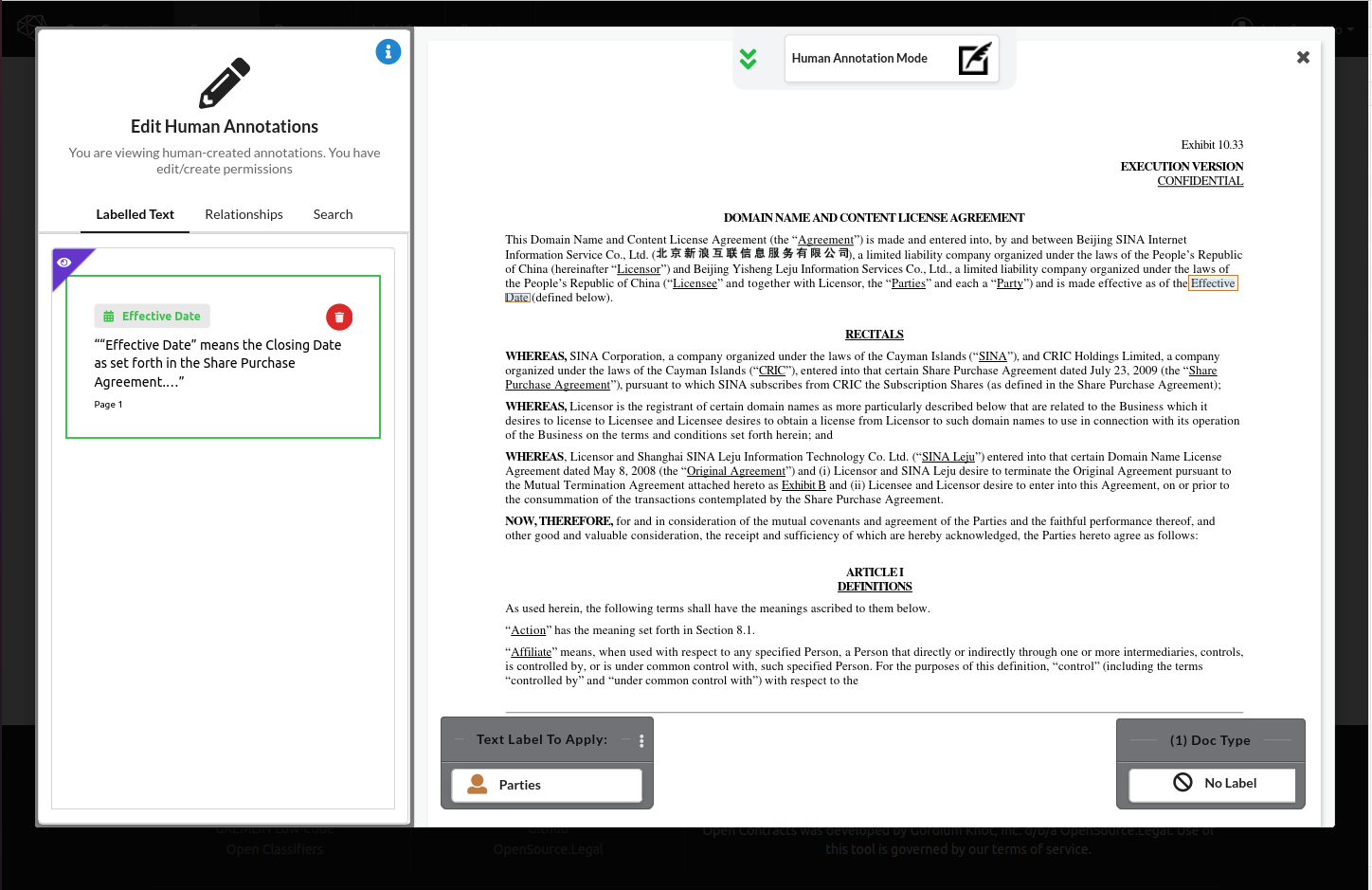
  8. If your desired annotated text is non-contiguous, you can hold down the SHIFT key while selecting blocks of text to combine them into a single annotation. While holding SHIFT, releasing the mouse will not create the annotation in the database, it will just allow you to move to a new area. 1. One situation you might want to do this is where what you want to highlight is on different lines but is just a small part of the surrounding paragraph (such as this example, where Effective Date spans two lines):
  2. Or you might want to select multiple snippets of text in a larger block of text, such as where you have multiple parties you want to combine into a single annotation: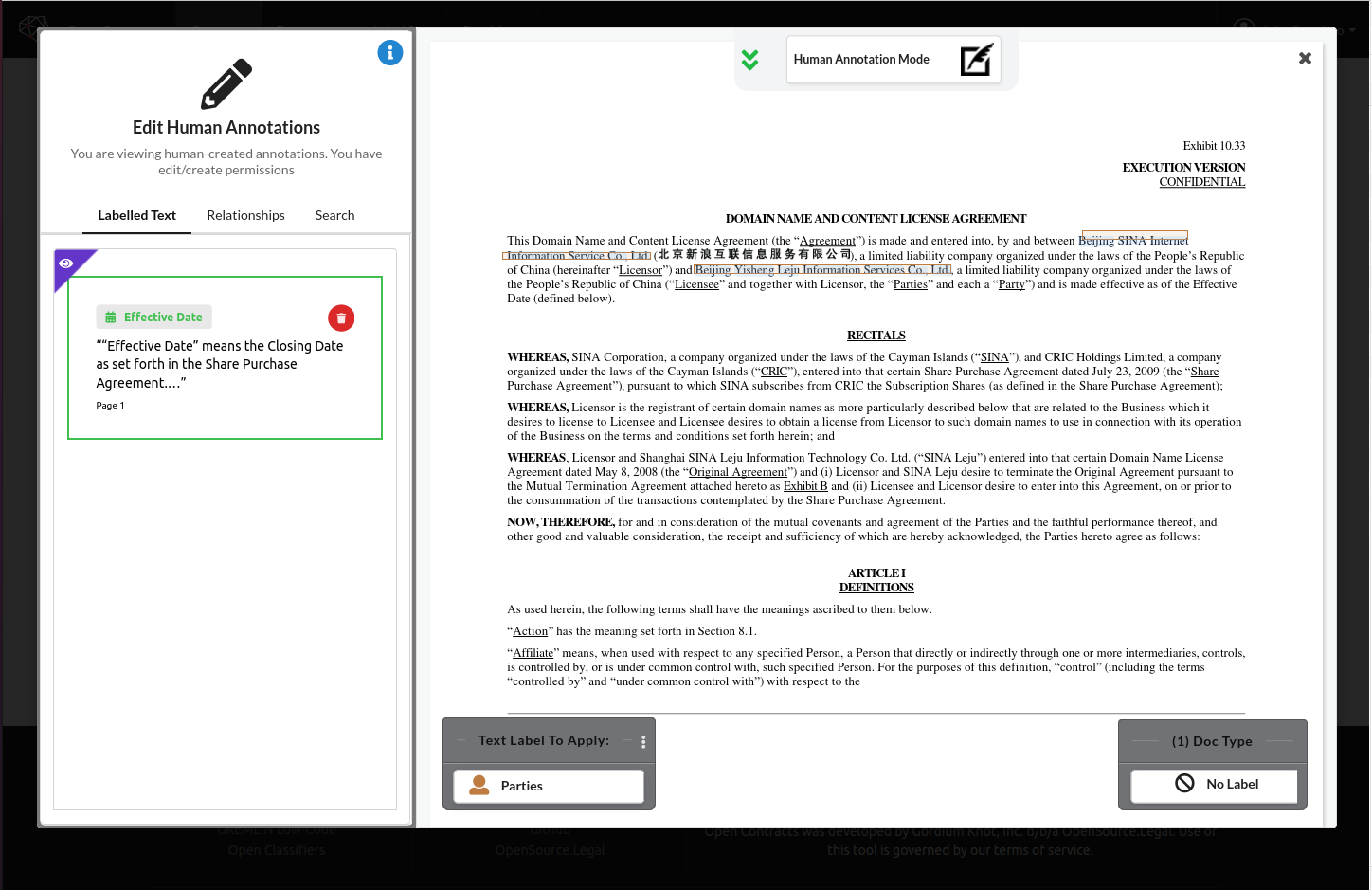
Hyperlink Annotations (OC_URL)
You can anchor a clickable hyperlink to highlighted text. Annotations carrying the built-in OC_URL label render with an underline + external-link icon and open their target URL on click (in both the PDF viewer and the text/markdown viewer).
To create a link annotation:
- Highlight the target text the same way you would for a normal annotation.
- In the selection action menu, click Add link…
- Enter the URL.
The selection is persisted as an Annotation with label.text = "OC_URL" and a link_url field. The OC_URL AnnotationLabel is auto-created per corpus on first use, so no labelset configuration is required up front.
Editing or removing a link
- The pencil icon on an existing
OC_URLannotation opens a URL-edit modal (instead of the normal label modal). - Hold Shift / Ctrl / Cmd while clicking a link annotation to fall back to the normal selection toggle — useful when you want to delete or rebind it.
URL safety
URLs are validated both client-side and server-side via a shared validate_link_url helper:
- Allowed:
http://,https://, and site-relative paths (/...). - Rejected:
javascript:,data:, and other dangerous schemes.
External targets open in a new tab with noopener,noreferrer; site-relative paths navigate within the SPA.