Corpus Actions
Introduction
Corpus Actions are automated tasks that run when specific events occur in a corpus. If you're familiar with GitHub Actions (user-scripted functions that run automatically when certain events occur in a repository), then Corpus Actions follow a similar concept—but for document and discussion management.
You can configure actions that automatically run when: - Documents are added to a corpus - Documents are edited in a corpus - New discussion threads are created in a corpus - New messages are posted to discussion threads
Supported Action Types
OpenContracts supports three types of automated actions:
| Action Type | Description | Best For |
|---|---|---|
| Fieldset | Automatically extracts structured data from documents | Contract data extraction, form processing |
| Analyzer | Runs classification or annotation analysis | Document categorization, auto-annotation |
| Agent | Invokes an AI agent with tools | Summarization, moderation, custom workflows |
Trigger Types
| Trigger | Event | Supported Actions |
|---|---|---|
add_document | Document added to corpus | Fieldset, Analyzer, Agent |
edit_document | Document edited in corpus | Fieldset, Analyzer, Agent |
new_thread | Discussion thread created | Agent only |
new_message | Message posted to thread | Agent only |
Note: Thread and message triggers (
new_thread,new_message) only support agent-based actions, as they're designed for AI-powered moderation and response workflows.
Creating Corpus Actions via the Frontend
Accessing Corpus Settings
- Navigate to a corpus you own
- Click the Settings tab
- Scroll to the Corpus Actions section
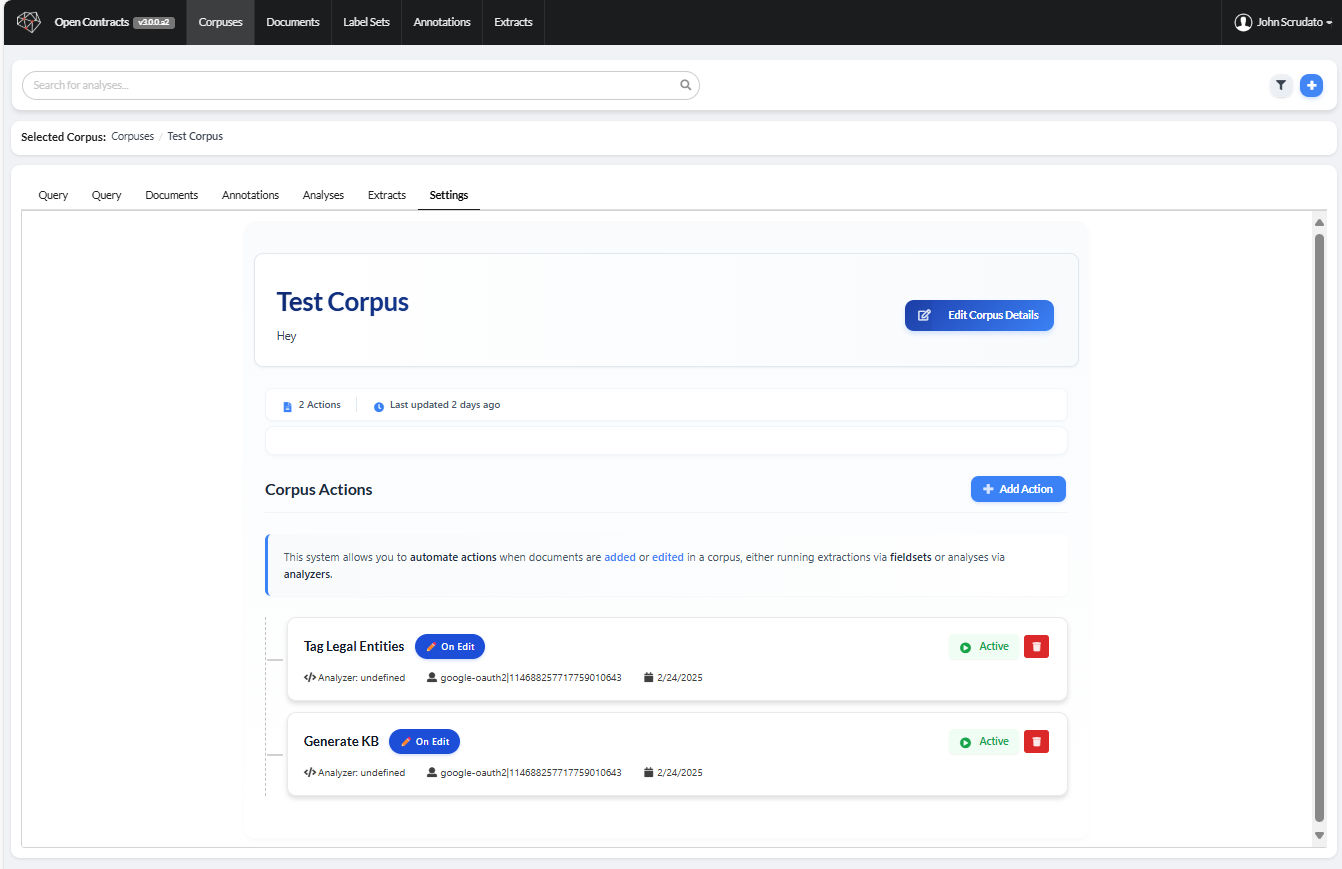
Creating a New Action
- Click the Create New Action button
-
Fill in the action configuration:
-
Name: A descriptive name for the action
- Trigger: When the action should run
-
Action Type: What kind of action to perform
-
Configure the action-specific settings (see sections below)
- Click Create Action
Fieldset Actions
Fieldset actions automatically extract structured data from documents.
- Select Trigger: "On Document Add" or "On Document Edit"
- Select Action Type: "Fieldset (Extract data)"
- Choose a Fieldset from the dropdown
- Click Create Action
When documents are added/edited, the specified fieldset will automatically extract data and create an Extract record.
Analyzer Actions
Analyzer actions run classification or annotation tasks on documents.
- Select Trigger: "On Document Add" or "On Document Edit"
- Select Action Type: "Analyzer (Run analysis)"
- Choose an Analyzer from the dropdown
- Click Create Action
The analyzer's task (decorated with @doc_analyzer_task) will run automatically on matching documents.
Agent Actions (Document-based)
Agent actions invoke an AI agent with pre-authorized tools to perform intelligent document processing.
- Select Trigger: "On Document Add" or "On Document Edit"
- Select Action Type: "Agent (AI-powered action)"
- Choose an Agent Configuration from the dropdown
- Enter an Agent Prompt: The task-specific instructions for the agent
- Optionally select Pre-authorized Tools: Tools that can run without approval
- Click Create Action
Example Agent Prompt for Auto-Summarization:
Analyze this document and create a comprehensive summary.

1. Use load_document_text to read the full content
2. Identify the document type, key parties, and main topics
3. Use update_document_summary to save a 3-5 sentence summary

Focus on: document purpose, key terms, important dates, and parties involved.
Thread & Message Moderation
Thread and message triggers are designed for AI-powered moderation of discussion threads within a corpus. When configured, an agent automatically processes new threads or messages.
Creating a Moderation Action
- Select Trigger: "On New Thread" or "On New Message"
- The Action Type is automatically set to "Agent" (the only option for these triggers)
- Choose an Agent Configuration that has moderation tools available
- Enter a Moderation Prompt: Instructions for how the agent should moderate
- Select the Moderation Tools the agent can use
- Click Create Action
Available Moderation Tools
The following tools are available for thread/message moderation:
| Tool | Description |
|---|---|
get_thread_context | Get thread metadata, status, and settings |
get_thread_messages | Retrieve recent messages in a thread |
get_message_content | Get the full content of a specific message |
add_thread_message | Post a response message as the agent |
lock_thread | Lock the thread to prevent new messages |
unlock_thread | Unlock a previously locked thread |
delete_message | Soft delete a message (mark as deleted) |
pin_thread | Pin the thread to the top of the list |
unpin_thread | Unpin a previously pinned thread |
Example Moderation Prompt
You are a thread moderator for this corpus. Your role is to:

1. Monitor discussion threads and messages for policy compliance
2. Take appropriate moderation actions when needed
3. Respond helpfully to user questions when appropriate

Guidelines:
- Lock threads that become off-topic or contentious
- Delete messages that violate community guidelines
- Pin threads that contain important announcements
- Respond to questions with helpful, factual information

Use your moderation tools judiciously. Start by reading the thread context
and recent messages to understand the discussion before taking action.
Moderation Workflow
When a user posts a new message to a thread in your corpus:
- The
new_messagetrigger fires - Your configured agent action is queued
- The agent receives the moderation prompt
- The agent uses tools to read the message and thread context
- The agent decides what action (if any) to take
- Results are logged to the Action Execution Trail
Viewing Action Executions
The Action Execution Trail in Corpus Settings shows the history of all action executions:
- Status: Queued, Running, Completed, Failed, or Skipped
- Action Name: Which action was executed
- Target: The document or thread/message that triggered the action
- Timing: When the action was queued and how long it took
- Error Details: For failed executions, the error message
Click on any execution row to expand and see full details.
Configuration Options
Disabling Actions
Toggle the Disabled checkbox when creating or editing an action to temporarily disable it without deleting the configuration.
Run on All Corpuses
The Run on All Corpuses option (admin only) makes the action run across ALL corpuses in the system. Use with caution as this can incur significant compute costs.
Deferred Execution
Corpus actions automatically wait for documents to be fully processed before executing. This ensures that:
- New uploads: Actions trigger after parsing/thumbnailing completes
- Existing documents: Actions trigger immediately when added to corpus
This prevents agent tools like load_document_text from failing due to incomplete document processing.
Via Django Admin (Advanced)
For advanced configuration or bulk operations, you can also manage Corpus Actions via the Django admin dashboard at http://localhost:8000/admin.
- Navigate to Corpuses > Corpus Actions
- Click Add Corpus Action
- Configure the action properties
- Save
This is useful for: - Configuring actions with run_on_all_corpuses enabled - Bulk editing multiple actions - Accessing actions on corpuses you don't own (superusers only)
Related Documentation
- Corpus Actions API - GraphQL API reference
- Agent-Based Actions Architecture - Technical deep-dive
- Registering Custom Analyzers - Writing
@doc_analyzer_taskdecorators - Data Extraction - Setting up fieldsets for extraction